Debugging permission issues is one of the most frustrating parts of building secure applications. You make an API call, get a 403 Forbidden response, and then spend the next hour digging through policies, roles, and group memberships trying to figure out what went wrong.
Today, we're releasing Permission Introspection—a suite of tools that make debugging and fixing permission issues as easy as clicking a button.
The Problem: Permission Debugging is Hard
When a service account gets a 403 error, the questions start:
- Does this service account have the right groups?
- Is there a policy that should grant access but isn't matching?
- Are there conditions on the policy that aren't being met?
- Is the resource even configured correctly?
Until now, answering these questions meant manually checking policies, tracing through conditions, and making educated guesses. Even experienced developers can spend hours on what should be a simple fix.
The Solution: See Everything, Fix Anything
Permission Introspection gives you complete visibility into what's happening during authorization decisions, and the tools to fix issues without writing code.
1. Permission Scanner
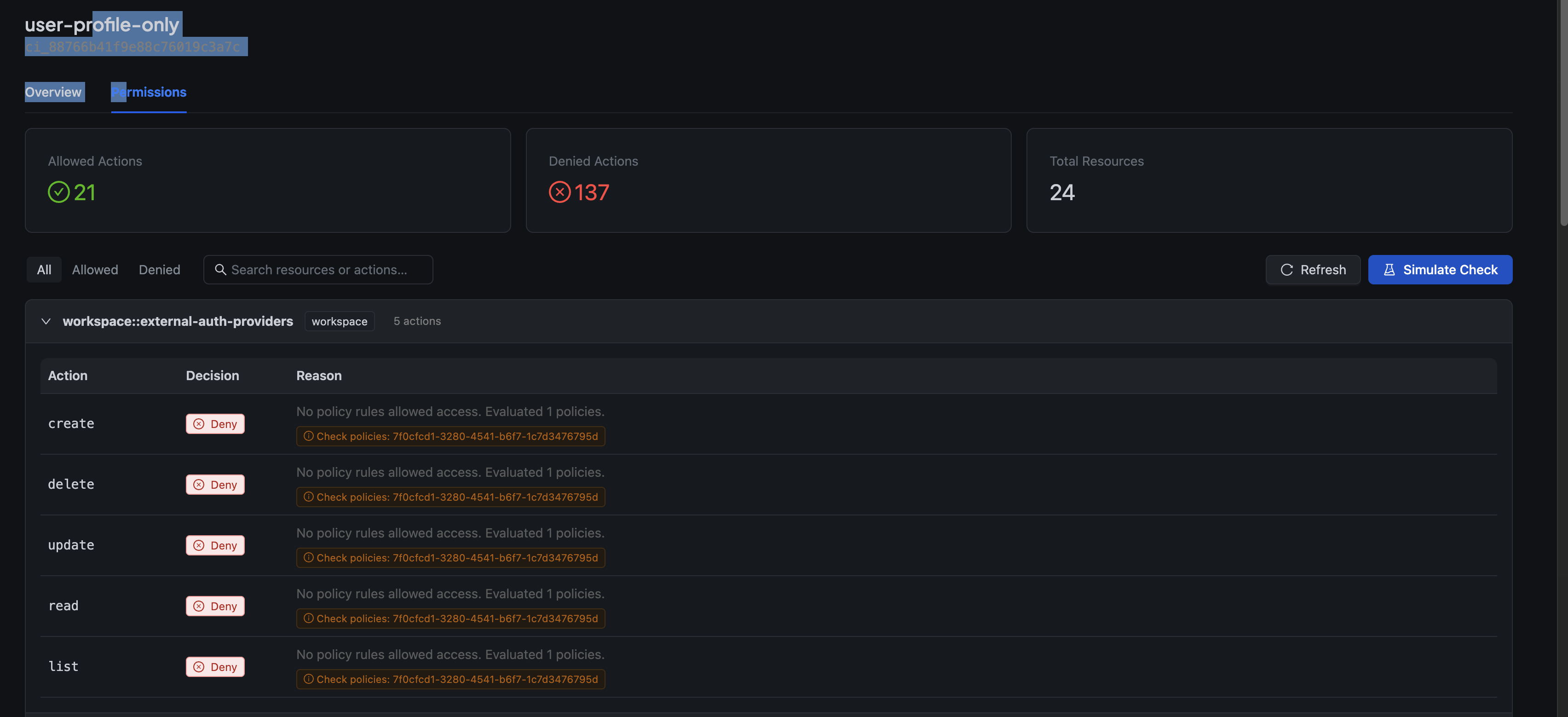
Click the Permissions button on any service account to see a complete breakdown of what it can and can't do.

The scanner evaluates every action on every resource and shows you:
- Allowed Actions — What the service account can do
- Denied Actions — What's blocked and why
- Total Resources — How many resources were evaluated
Each denied action shows the specific reason—whether it's a missing policy, a condition that didn't match, or a resource that doesn't exist.
2. Authorization Simulation
Sometimes you need to test "what-if" scenarios. The Simulate Check feature lets you test any authorization scenario with custom context:
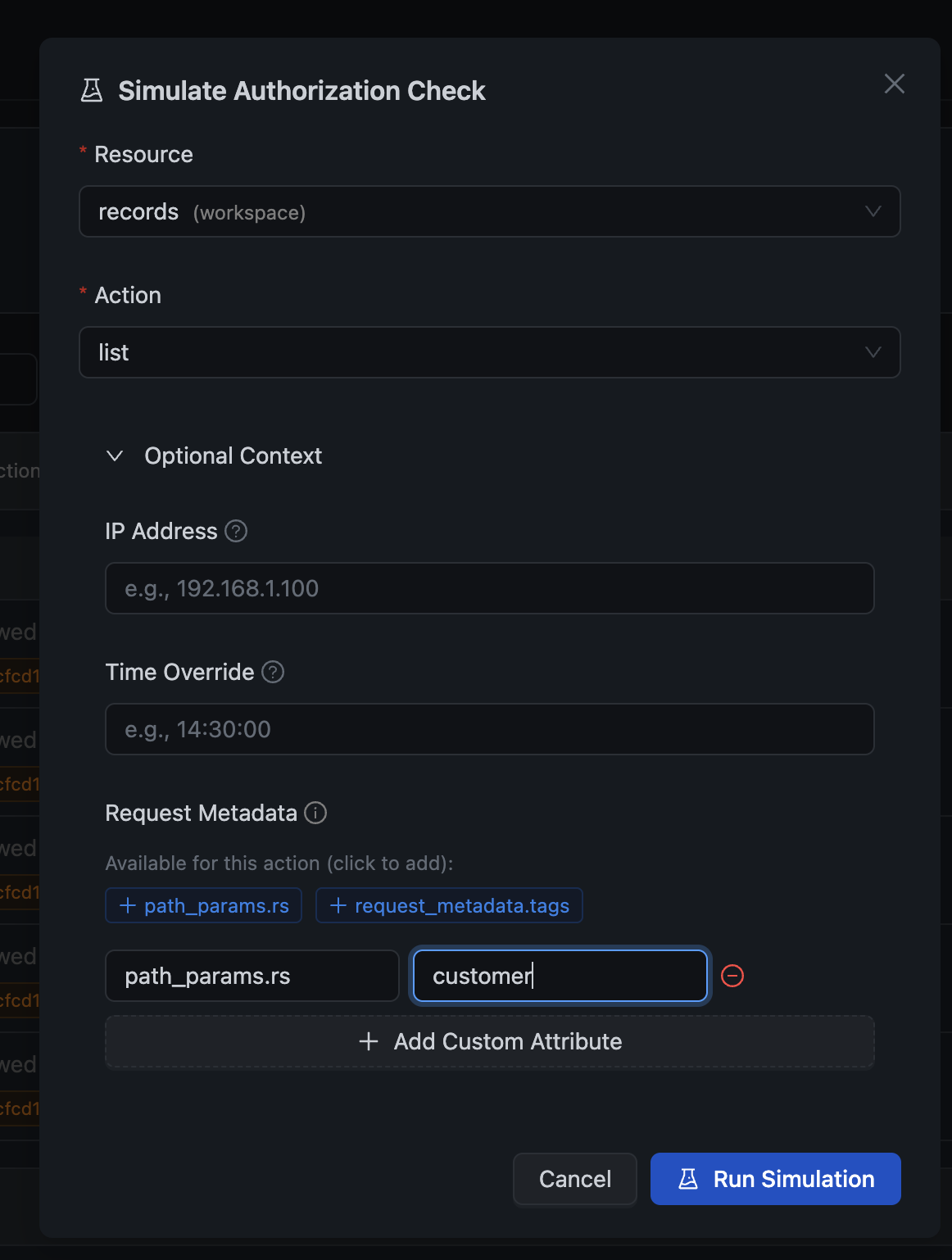
You can customize:
- Resource — Which resource to check access for
- Action — The specific action (list, create, update, delete, etc.)
- IP Address — Test IP-based policy restrictions
- Time Override — See if time-based conditions would pass at a different time
- Request Metadata — Add path parameters like structure slugs for instance-level checks
The simulation result shows you exactly what happened during evaluation:
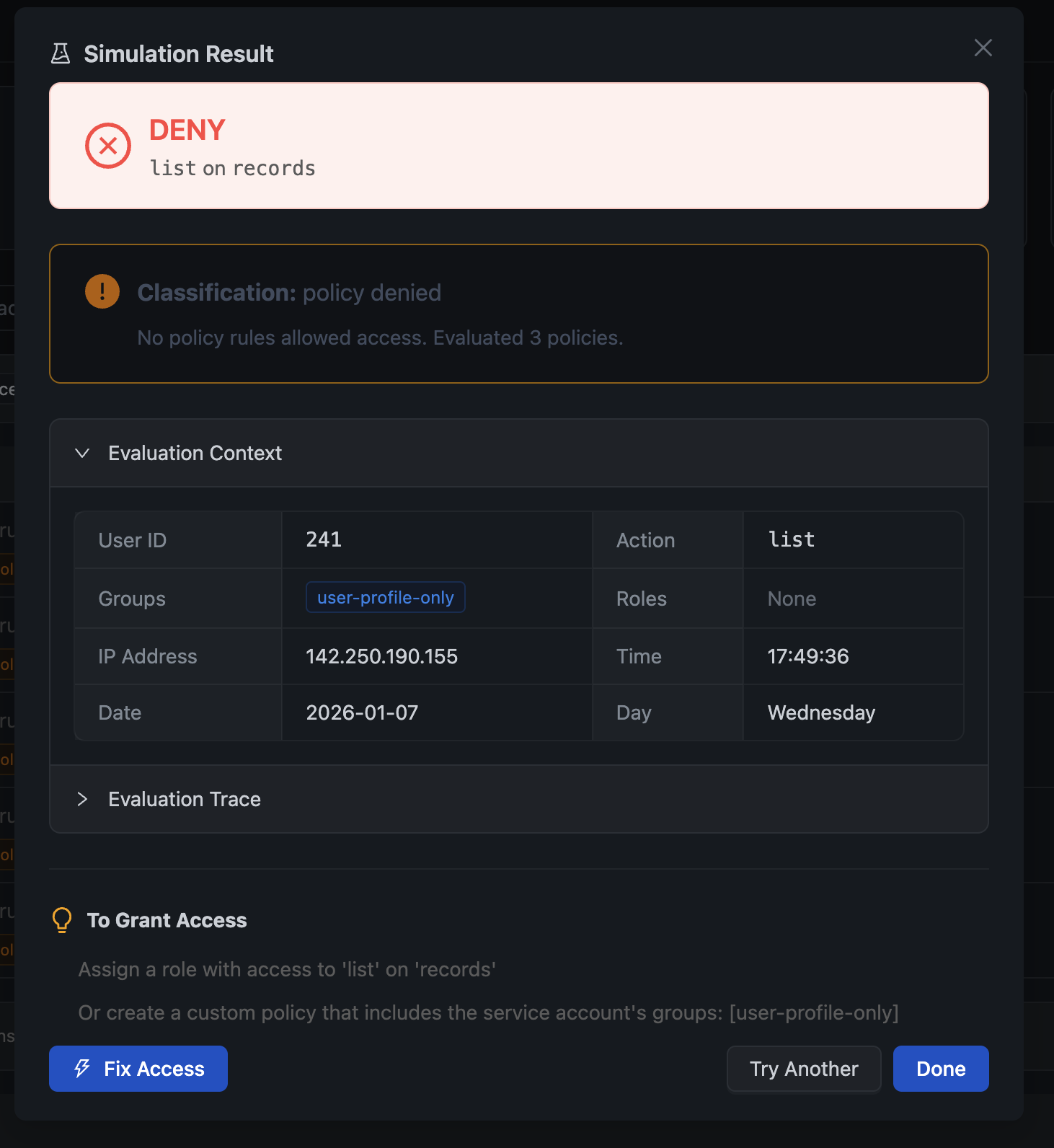
The result includes:
- Decision — Allow or Deny with clear visual indicator
- Classification — Why the decision was made (policy denied, no permission for action, etc.)
- Evaluation Context — The exact context used for the decision (user ID, groups, roles, IP, time)
- Evaluation Trace — Step-by-step breakdown of how the decision was reached
- Suggestions — Actionable recommendations for granting access
3. One-Click Remediation
This is where it gets really powerful. When access is denied, you don't have to manually create policies and permissions. Click Fix Access and the Remediation Wizard guides you through granting access.
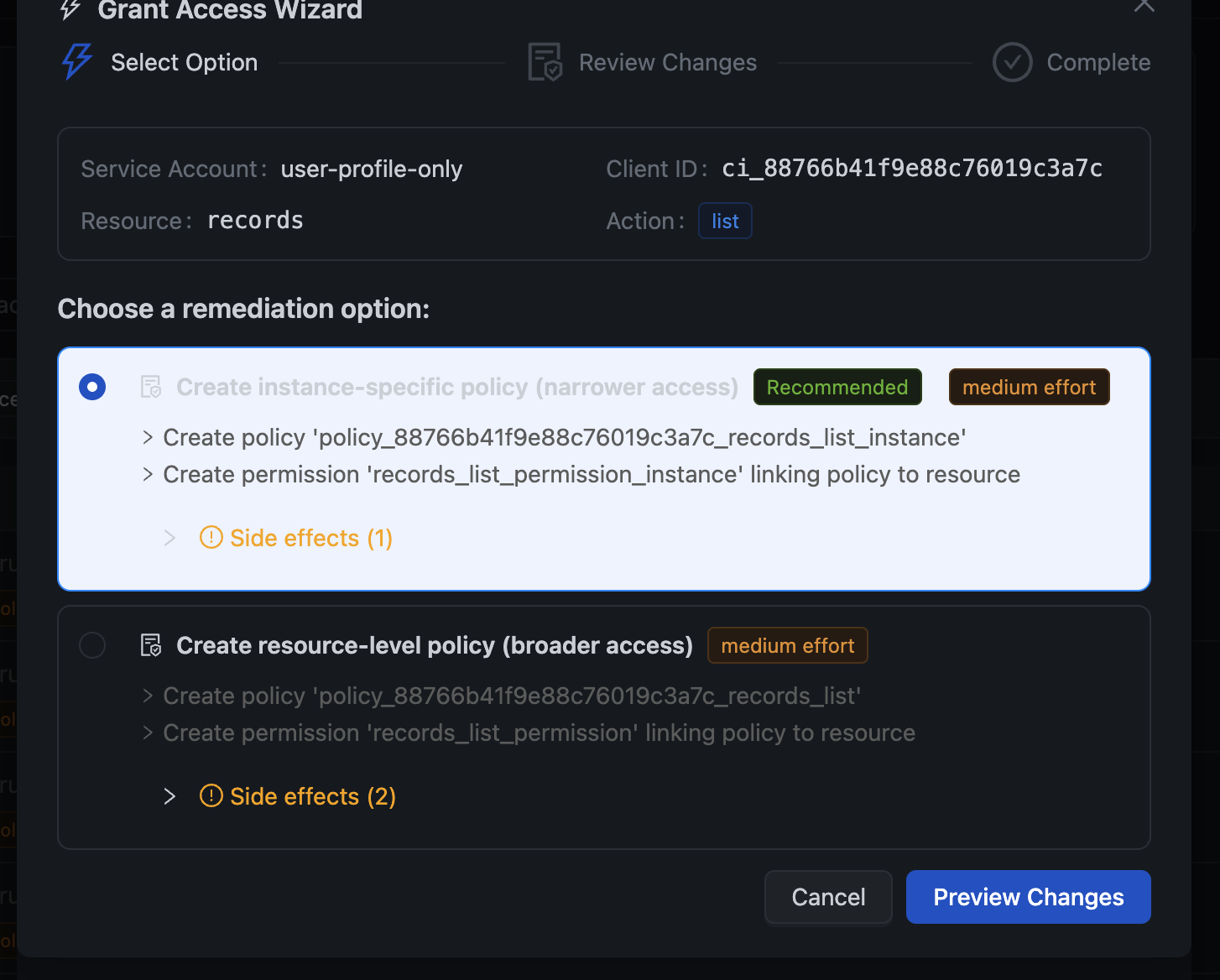
The wizard offers multiple options:
- Instance-Specific Policy — Grant access only to a specific resource instance (e.g., only the "customers" structure). This is the recommended option for least-privilege access.
- Resource-Level Policy — Grant access to all instances of a resource type. Use when the service account needs broader access.
Each option shows:
- The effort level (low/medium/high)
- Side effects (what additional access might be granted)
- Exactly what will be created
4. Review Before Applying
Before any changes are made, you see exactly what will be created:
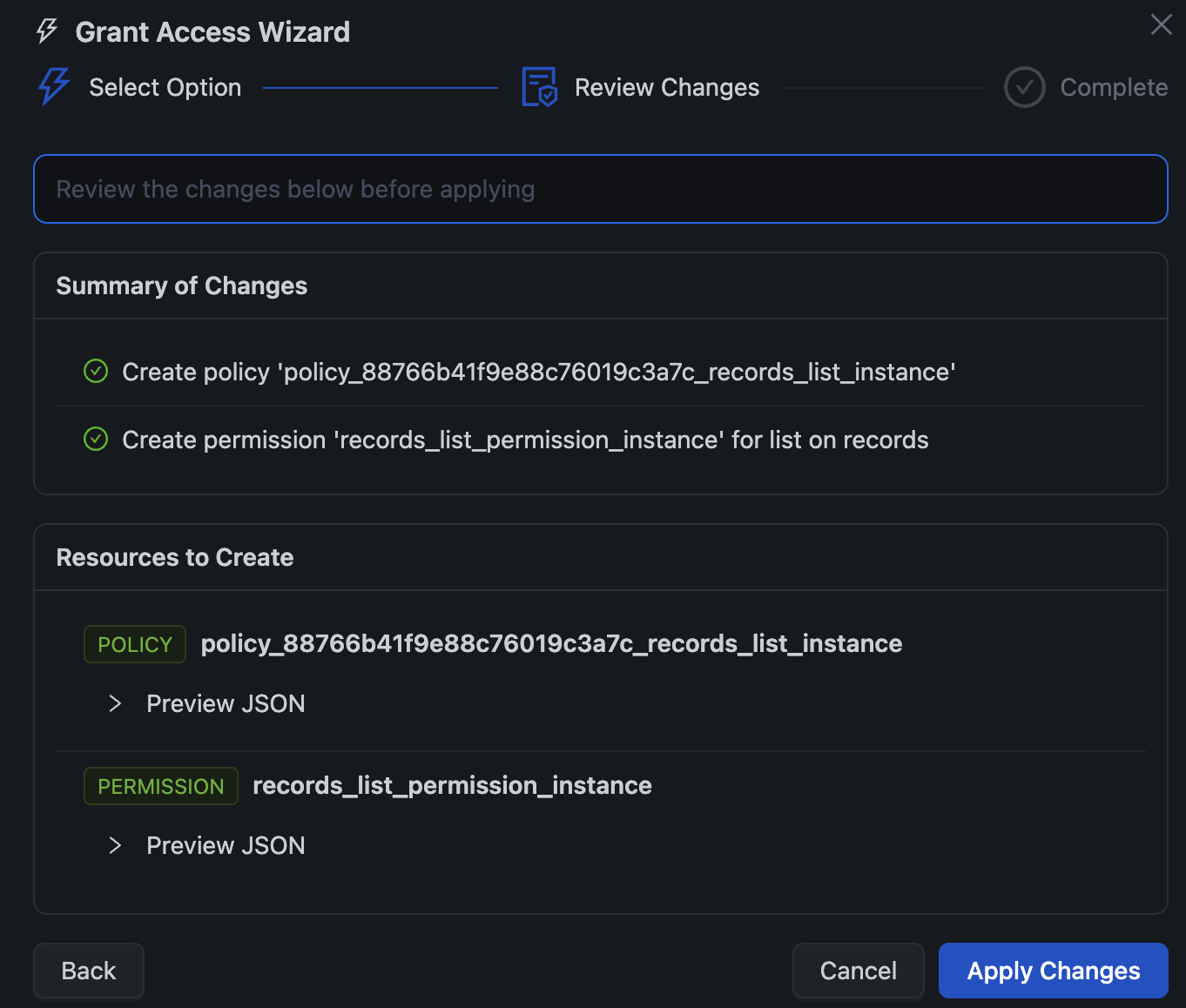
The review screen shows:
- Summary of Changes — Human-readable description of what's happening
- Resources to Create — The actual policies and permissions that will be created
- Preview JSON — Expand to see the exact policy specification
Click Apply Changes and the wizard creates everything for you, then verifies the fix worked:
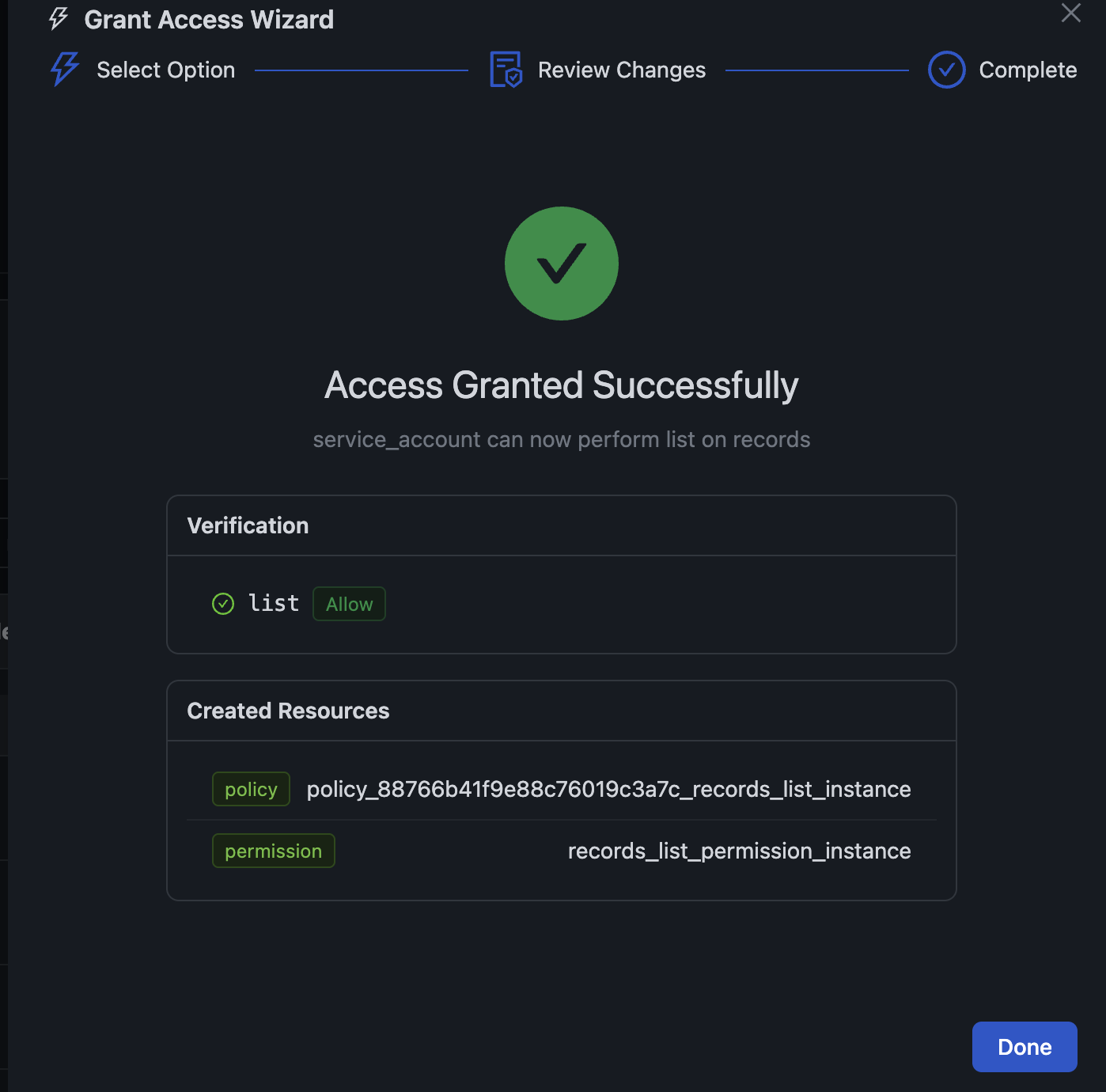
The verification step re-runs the simulation to confirm the service account now has the access it needs.
5. Structure Security Tab
For data structures, there's a new Security tab that shows who has access to records:
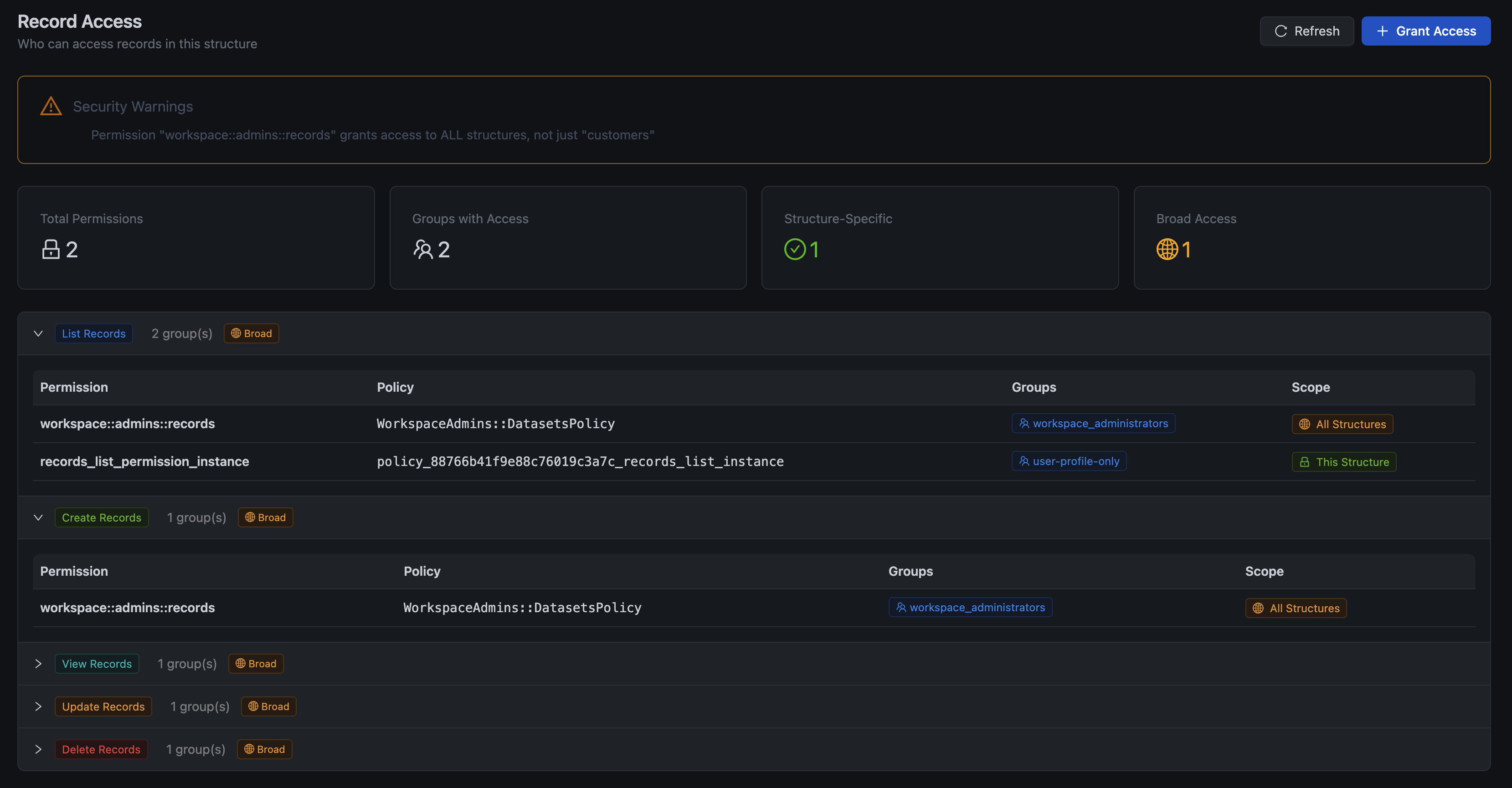
This view shows:
- Security Warnings — Alerts for overly broad access patterns
- Total Permissions — How many permissions grant access to this structure
- Groups with Access — Which groups can access records
- Scope Breakdown — Structure-specific vs. broad (all structures) access
This makes it easy to audit access and identify potential security issues before they become problems.
How It Works Under the Hood
Permission Introspection uses the same policy evaluation engine that handles real authorization requests, but with additional instrumentation:
- Token Minting — We mint a temporary token for the service account to evaluate permissions in its exact security context
- Full Evaluation — Every policy rule is evaluated with detailed tracing
- Classification — Results are classified into categories (policy denied, no permission, resource not found, etc.)
- Remediation Generation — We analyze the denial reason and generate targeted fixes
The remediation generator is smart about creating minimal policies. It analyzes:
- What access is needed
- What the service account's current groups are
- Whether instance-level or resource-level access is appropriate
- What side effects each option would have
Security Considerations
Permission Introspection is a powerful debugging tool, and we've added appropriate safeguards:
- Requires security:debug permission — Only users with explicit security debugging rights can use introspection
- Mutation permissions enforced — Applying remediations requires create/update permissions on the resources being modified
- Audit logging — All introspection and remediation actions are logged for security review
- No privilege escalation — You can only grant permissions you yourself have the rights to manage
Getting Started
Permission Introspection is available now in Centrali 2.8.0. To use it:
- Navigate to Service Accounts in your workspace
- Click the Permissions button on any service account
- Explore the permission scanner, run simulations, and fix issues with the remediation wizard
For structure-level security analysis, open any structure and click the Security tab.
What's Next
This is just the beginning. We're working on:
- User permission introspection — Same capabilities for regular users, not just service accounts
- Policy recommendations — AI-powered suggestions for optimal policy configurations
- Compliance reports — Export permission analysis for security audits
- Bulk remediation — Fix multiple permission issues at once
We'd love to hear your feedback on Permission Introspection. Let us know how it's working for you and what additional features would be helpful.
Permission Introspection is available in Centrali 2.8.0. Update your deployment or check the changelog for details.